01
Quick signature with your finger on the phone
The document arrives, you open it on your phone, sign with your finger, and send it. No printer, no computer, no waiting to get back to the office.

From instantly signing a document in your browser for free, to complete digitization of the entire document lifecycle integrated into your systems.


Search and page previews
Full-text search in the document and a page overview for quick navigation.
Drawing and highlighting
Add your own notes and highlights directly in the document before signing.
Inserting images
Add a stamp, logo, or other graphic anywhere you like.
Document management
Print or download the finished document, or add more to the one in progress.
The document arrives, you open it on your phone, sign with your finger, and send it. No printer, no computer, no waiting to get back to the office.
Photograph your signature once and insert it into documents. It replaces the whole print → sign → scan → send chain.

Where a simple signature isn't enough, sign with a local certificate or via Bank iD*.
*Czech Republic only

Dashboard
An overview of all your documents and their statuses — works as a simple document management system.
Certificate in your profile
A certificate saved from your computer to your profile can also be used for signing on mobile — even where the certificate isn't physically present.
More signers
A document can be signed by several people, not just you.
More field types
Beyond text and checkbox fields from the quick editor.
Inbox and sent, documents awaiting signature, completed documents, templates, and trash. Folders that need action show a count of pending documents.
Search by name and sort documents by date, name, sender, or status, ascending or descending. Bulk selection lets you work with multiple documents at once, plus list refresh and pagination.
For every document you'll see its name, sender and recipients, status with signature count, and the date of the last change. Multiple recipients are shown collapsed, and documents in one envelope can be expanded. Color-coded statuses immediately show whether your action is needed, you're waiting on others, or it's done.
Through the Open document button you can use the quick Simple Mode editor, load a document directly from Dropbox, Google Drive or OneDrive, or create an envelope for multiple documents signed together.
In the top right corner you'll find your credit balance, language switcher, app switcher, and account menu for quick access to important settings.
Here's where this option reaches its limit. Even with registration, it stays focused on individuals and individual documents. Once you need a controlled workflow with signing order, bulk sending, signer identity verification, or integration with company systems, it's time to move to the full-featured solution.
A document isn't created by signing, and signing isn't where it ends. Signosoft covers the whole process — from creating the document, through preparation and identifying participants, to signing, securing, archiving, and handing it off to other systems. And you can carry out almost every step in two ways: in the Signosoft app, or programmatically through the API.
Start where your documents actually come from. Signosoft doesn't require you to change where the document is created just because of the signature.
The document is created in a CRM, ERP or other business application and handed to Signosoft automatically via the REST API.
Upload a PDF to the web app and set up the signing process — no development required.
A reusable template or web form that the user fills in before signing.
Add what everyone needs to fill in and where they need to sign, and set who signs and the signing rules — no coding, just drag a field onto the page.
Combined documents aren't physically merged. When you add more than one PDF to a single contract, the signer sees them together as one signing process — but they remain separate files, not a single flattened PDF. Each one keeps its own identity in the archive too.
You decide who signs, what, and how. You define the signing parties, signature fields, order, signing method, and the required level of verification.
A single document can combine multiple signers and multiple signing methods. A typical business scenario: the company signs with a certificate, while the customer or patient signs by hand on a tablet or signature pad.
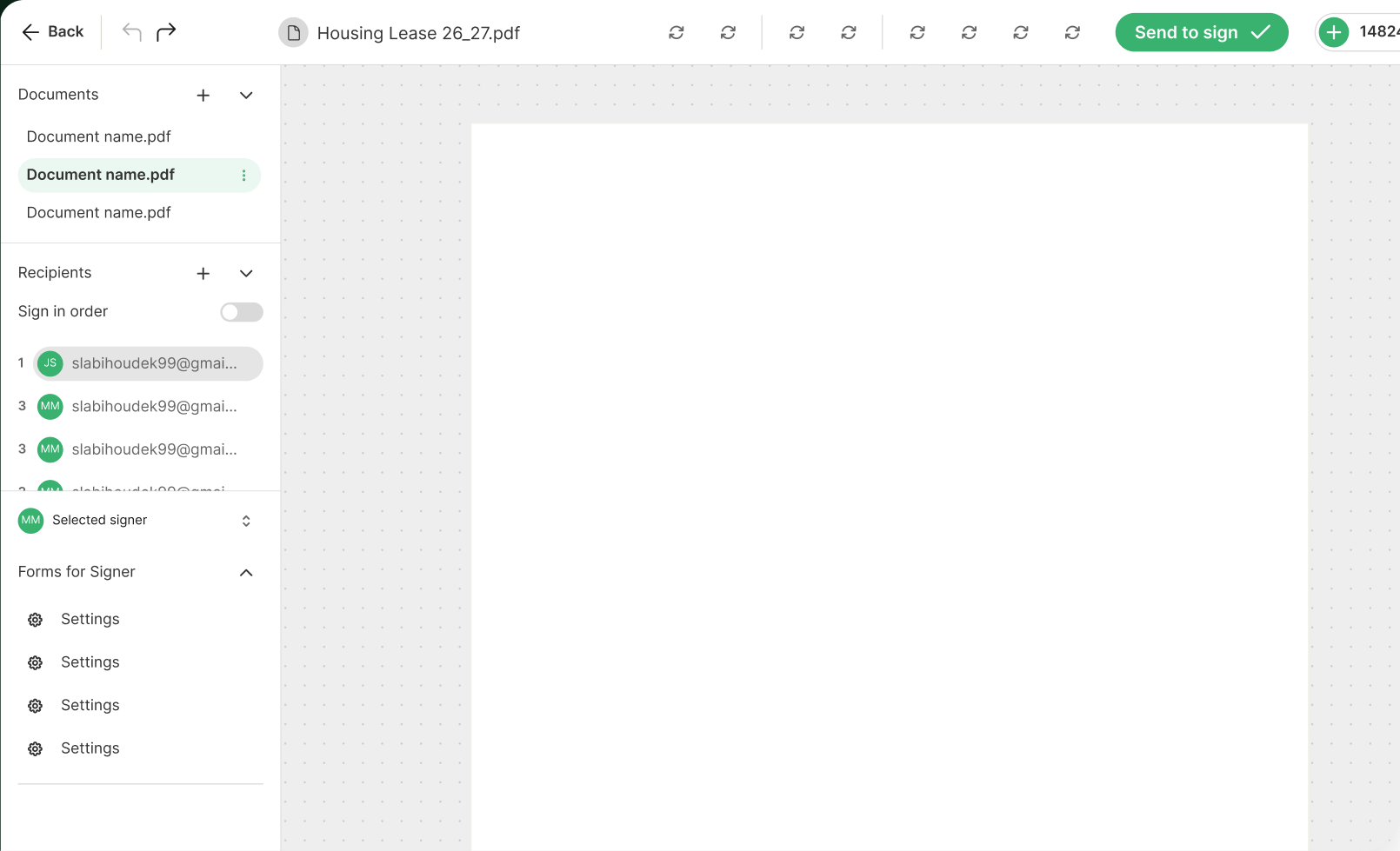
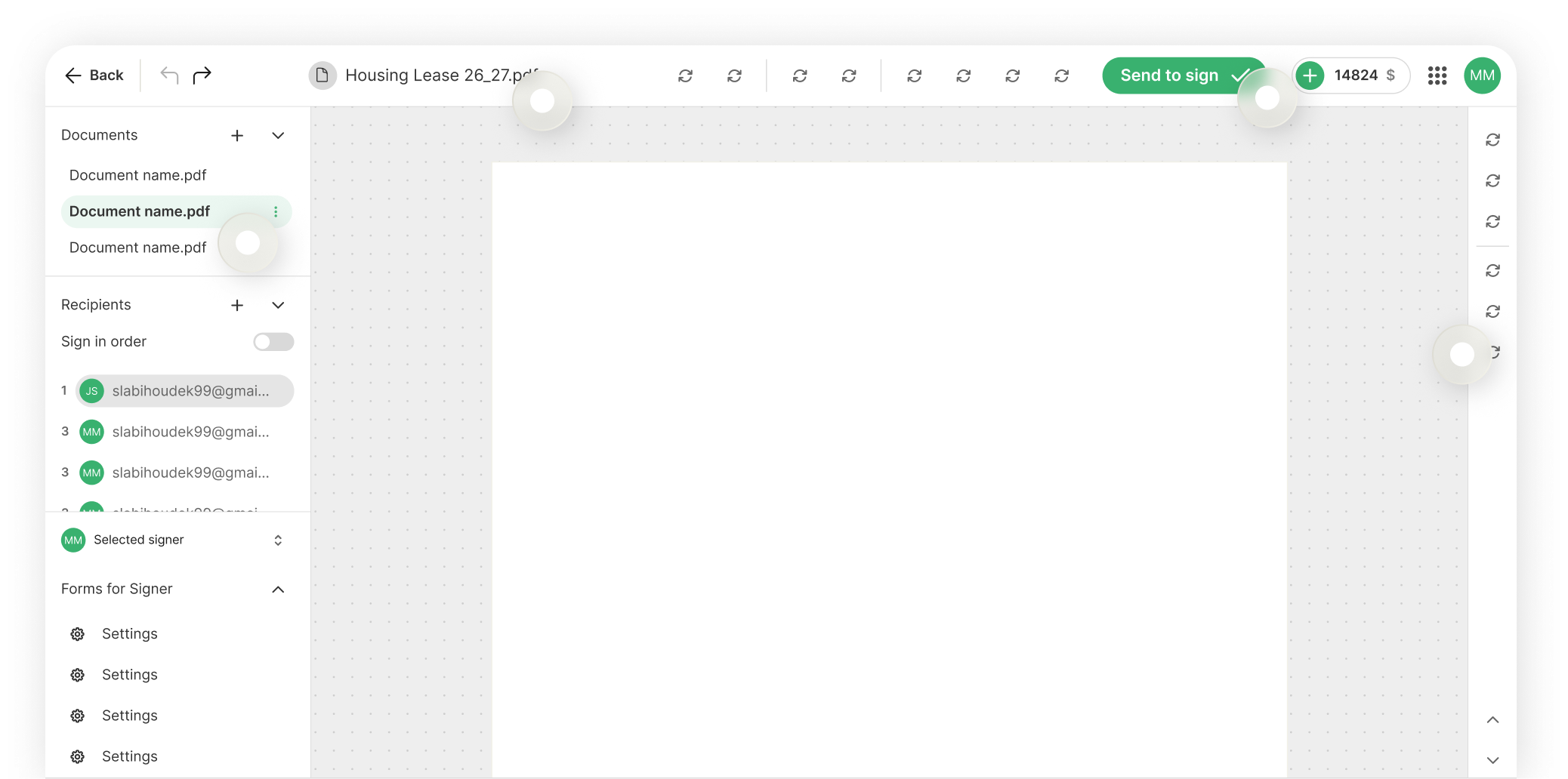
The editor has three parts: what and who on the left, the document in the middle, and tools on the right. A single button at the top starts the process.
The list of documents in this contract. Use the + button to add more — they're then signed together as a single unit.
Who signs the document. The Sign in order toggle sets whether signing happens in a set order or all at once. In Person means signing on the spot, on a single device.
The signing method you choose for a given field: Simple, Handwritten, Certificate, Bank iD Sign, or Initials.
Text, Checkbox, Radio Button and Dropdown — what the signer fills in before signing.
Fields that fill in automatically from the signer's details: first name, last name, full name, email, phone, and more.
The PDF preview where you drag fields onto the page. Bottom right has pagination and zoom; the right-hand toolbar has search, drawing, highlighter, image insertion, and help.
The prepared document is sent out with the Send to Sign button in the app, or by calling the API. That turns the document into a live signing process.
At this stage, the system creates signing requests for every signer listed on the document — based on the signature method, verification level, and order assigned to each. From then on, Signosoft tracks who has signed and who's still pending.
{
  "template_id": "tpl_984f8d2",
  "recipients": [
    {
      "email": "customer@email.cz",
      "role": "signer",
      "signature_type": "bank_id"
    }
  ],
  "metadata": {
    "deal_id": "deal_39281"
  }
}Two paths, depending on where the signer is. That determines how their identity is verified, and which signature types are available.
The signer stands in front of an employee — at a branch, hospital, or point of sale.
This usually happens outside Signosoft — the employee physically checks an ID document. The system doesn't need to verify identity itself, since a person already did. Signosoft's verification tools can still be used if the process requires documented proof.
The signer isn't physically present. Signosoft sends them a secure link by email, SMS, or WhatsApp, and they sign it in their browser.
Here, no one checks an ID document. The system itself must securely verify the signer's identity — otherwise there's no proof of who actually signed the document. Signosoft offers four ways to do this, chosen based on how sensitive the process is (see identity verification).
From a one-time password to ID verification with a liveness check. Choose the method that fits how sensitive the process is — you can even use a different one for each participant on the same document.
The signer must verify their identity before they ever see the document. Delivering the link alone isn't proof of the recipient's identity.
Identity is verified only at the moment the document is signed. Each signer can use their own verification method based on their role.
Both levels use the same four verification methods, and they can be combined — a document opened with a one-time password can still be signed only after ID verification.
A single-use password the signer receives by email, SMS, or WhatsApp.
A password agreed on in advance that the signer knows and uses to prove their identity.
Identity verification via an ID document plus a liveness check — confirming that a real person, not a photo or recording, is in front of the camera.
Identity verification through bank identity.
The Protection tab on a signature field offers exactly these four verification methods. The same choice is also available at the whole-document level.
One-Time Password a one-time code sent by email, SMS, or WhatsApp
Fixed Password a fixed password the signer already knows
Identity Verification an ID document plus a liveness check
Bank iD verification through a bank identity provider
*Bank iD is only available in the Czech Republic. In other countries, use a one-time password, fixed password, or ID verification with a liveness check.
Choose the signature type and level of legal certainty that fits each process — all in one product.
Simple electronic signature
A straightforward way to confirm a document. An initial is its simplified form for approving individual pages of the document.
Handwritten (biometric) signature
A straightforward way to confirm a document. An initial is its simplified form for approving individual pages of the document.
Commercial or qualified certificate
A straightforward way to confirm a document. An initial is its simplified form for approving individual pages of the document.

Bank iD Sign CZ only
An electronic signature confirmed through your bank identity.
Just like identity verification, the signature type is set per individual signature field. That means a single document can carry both your company's certificate signature and a client's handwritten signature at the same time.
Simple a simple signature
Initials an initial; cannot be combined with other methods
Handwritten a handwritten signature that captures real pen pressure
Certificate a commercial or qualified certificate
BankIdSign Bank iD Sign CZ only
Bank iD Sign is only available in the Czech Republic. For cross-border processes, use a certificate, handwritten, or simple signature.
Throughout the document's entire lifecycle, an audit log is created that records every action taken on it. It's this log that later provides the evidence needed to prove the document's authenticity and origin — including each individual signature.
Who
User accounts and signers, including how their identity was verified.
When & from where
Timestamps for each operation and IP addresses.
What happened
Every operation on the document — from creation through distribution to each signature.
With what content
Document hashes that prove the content hasn't changed since signing.
Signature data is cryptographically linked to the document, and its integrity is verified during processing.
Once signing is complete, the document can be archived in Signosoft, handed off to your company systems — or both.
Archived in Signosoft
The signed document stays in Signosoft's secure storage, complete with its full audit trail.
Handed off to your systems
Through APIs or plugins, the document travels to wherever your company actually manages it:
Documents don't have to stay in Signosoft. Once they've been handed off to your systems and no longer need to be kept there, they can be deleted from Signosoft right away — so you don't end up with a second place where documents live.
Settings, certificates, and payments in one place — everything a user configures themselves, without an administrator and without contacting support.
Account
Personal details — name, surname, phone, and initials used for your signature. You can also change your password or delete your account here.
My Certificates
Your signing certificates for qualified electronic signatures.
Preferences
App preferences — language, notifications, and signing behavior.
Stamp Design
The look of the signature stamp inserted into the document — what it contains and how it appears.
Payment Method
How you pay for the credit you use.
History
Transaction history — what was deducted from your credit, and when.
The stamp is what remains visible on the page after signing. You control its look yourself — from the border and logo to the font and color.
Logo your own logo in the stamp
Border a frame around the stamp
Custom Text a custom caption, e.g. "Digitally signed by"
Tabs determine where the signature comes from: Type (typed name), Draw (hand-drawn signature), Certificate (from a certificate), or Initials.
What's printed next to the signature in the stamp: name, date, and optionally an IP address.


